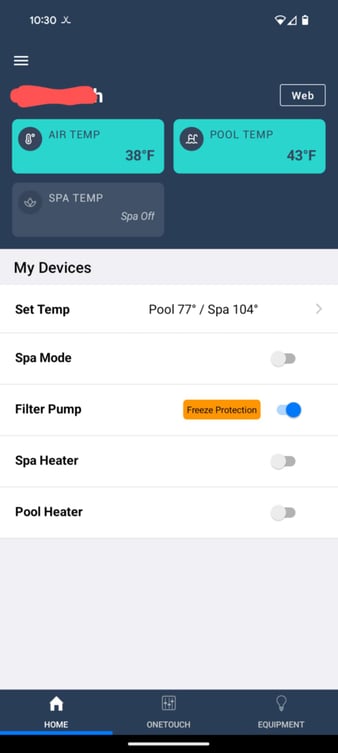
1. Connect To Your Homes WIFI Network
The first step in setting up your automation system is to make sure you are connected to your homes WIFI network. This must be the same WIFI network your pool builder connected your IAqualink System to.
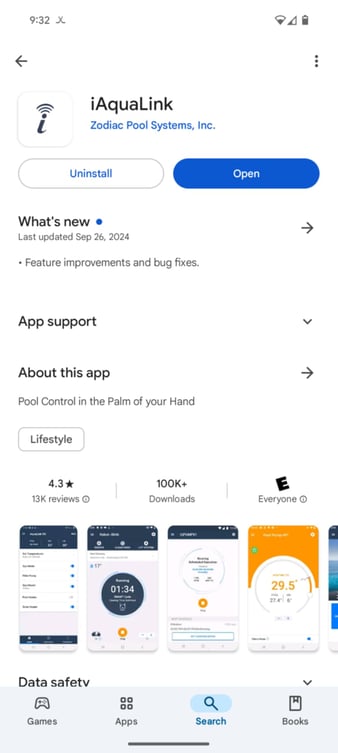
2. Download The iAquaLink App To Your Mobile Device
The first step to in connecting to your new automation system is to download the IAquaLink App on your Android or Apple Mobile Device.
IAqualink For Android Google Play Store - Download Here
IAqualink For Apple App Store - Download Here
3. Create An IAqualink Account
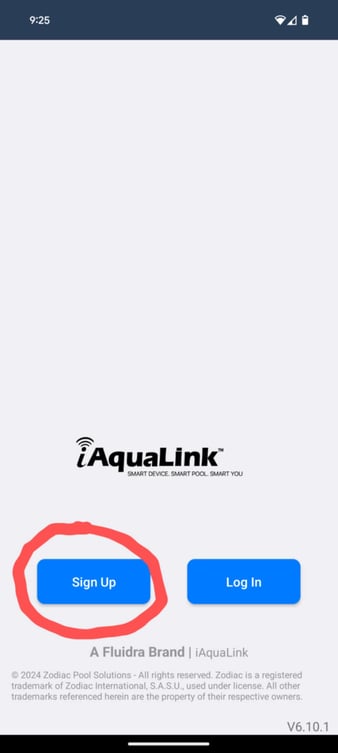
Once you have installed the IAquaLink App you can proceed to open the app and click the "Sign Up" button to create a new account.
Follow the apps prompts entering all the required information to open a new account.
4. Adding Your Automation System To Your Account
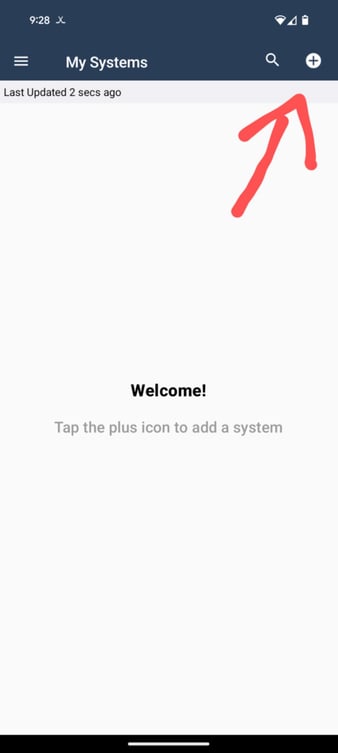
Once you have created your Iaqualink account and logged in you will be brought to the page shown below on the mobile app. Press the + button at the top right hand corner of the screen.
After you press the + button you will brought to the screen shown below where you will select the Automation System your pool builder has installed. In this case we are selecting Aqualink RS as shown below.
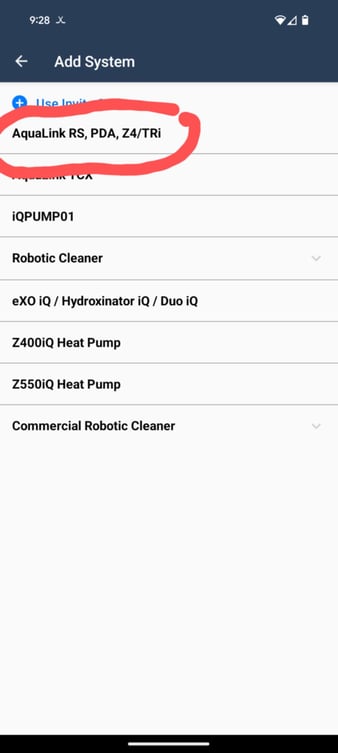
After selecting your automation system you will be directed to the page shown below asking for a "Device Number" as well as an option to "Edit Name"
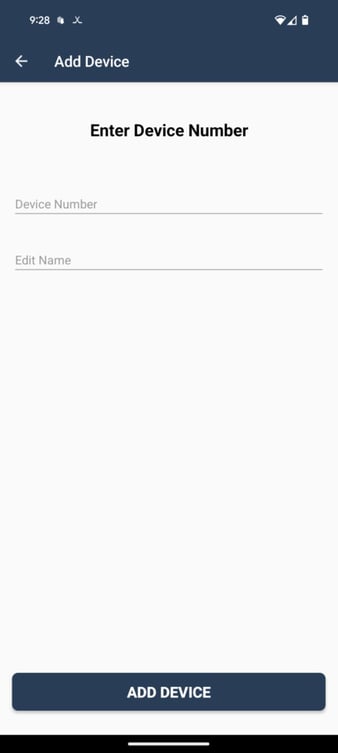
The "Device Number" can be found on the side of your Iaqualink Antenna or can also be found in your automation systems welcome package. If you can not find your device number contact your pool builder.
The "Device Number" Will be in the following sequence xxx-xxx-xxx-xxx Alternatively if the app does not accept your device number try entering it again with the hyphens removed xxxxxxxxxx
The "Edit Name" Field you can enter anything you wish. This is used to help you identify your system in the future. Examples of names you could enter is this field include:
- Hipel Family Pool
- 123 Hipel Street Pool
- Hipel Pools IAqualink
- I Love My New Pool 1
Once you have filled in the device number and edit name field press the Add Device button at the bottom of the screen.
If the Device Number Is Not Being Accepted Enter It Removing All Hyphens And Make Sure You Are Connected To The Same WIFI Network.
5. Main Screen - Connected
Once you have reached a screen similar to the one shown below you are officially connected to your IAquaLink system. The appearance of your App will differ from the one shown below.